The WASenderPro tutorial
Everything from download to your first sent batch — every feature explained, step by step, with pictures.
Download & install
No setup, no installer — the app is a folder you unzip.
- Click the Download button — you get a ZIP file (about 270 MB) containing the complete program.
- Unzip it — right-click the ZIP → "Extract all…". Put the folder anywhere you like (Documents, Desktop…). Do not run it from inside the ZIP.
- Run WASenderPro.exe — double-click it. Windows may show a "Windows protected your PC" blue window (the app is not yet code-signed): click "More info" → "Run anyway".
- If your antivirus complains — browser-automation tools are often flagged generically. Add an exclusion for the WASenderPro folder in your antivirus settings.
Good to know
Requirements: Windows 10 or 11, 64-bit. Nothing else to install — the browser is bundled. Everything the app saves (settings, session, history) lives in the "data" folder next to the exe.
Choose your language
The whole app speaks English and French.
At the bottom of the left sidebar, open the "Language" dropdown and pick English or Français. The entire interface switches instantly — no restart — and your choice is remembered for next time. The activity log at the bottom and the Excel exports follow the language too.
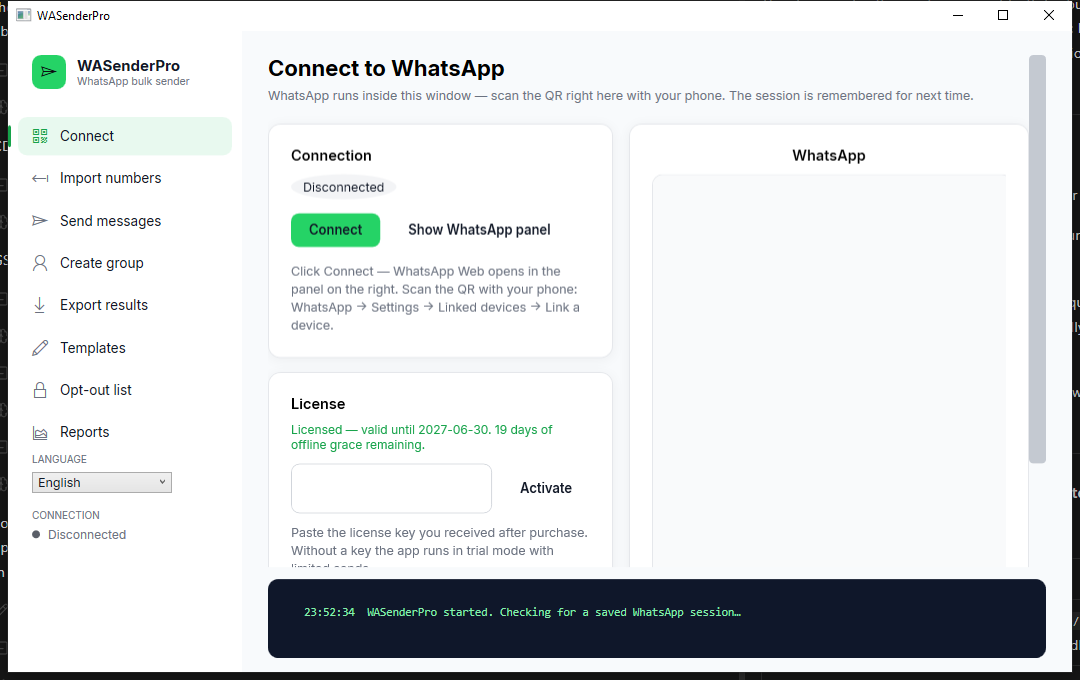
Connect WhatsApp
One QR code, and you stay connected across restarts.
- Open the Connect page — it is the first page in the sidebar. WhatsApp runs inside the app window, on the right.
- Press "Connect" — the WhatsApp panel loads and shows a QR code.
- Scan with your phone — WhatsApp → Settings → Linked devices → Link a device, then point the camera at the QR code.
- Done — the status turns green ("Logged in"). The session is saved: on the next launch the app reconnects silently, no QR needed.
Activate your license
Without a key the app runs in trial mode: 20 numbers, 5 messages per batch.
- Copy the key you received — it starts with "WSP-". One key activates one computer.
- Paste it on the Connect page — in the License card, paste the key and press "Activate".
- Confirm — the card turns green and shows your expiry date. All limits are lifted immediately.
Offline grace
The license is verified locally — you do not need to be online every day. A short grace window keeps the app usable even when offline.
Import numbers
Paste a list, or open a CSV / Excel file. Cleaning is automatic.
- Pick a source — "Paste text" for a list copied from anywhere, "CSV file" or "Excel (.xlsx)" for files (first column is read).
- Set your country code — optional (e.g. 33 for France): numbers written without "+" get the prefix automatically.
- Press "Import numbers" — duplicates and junk are removed; the clean list appears below with a summary card.
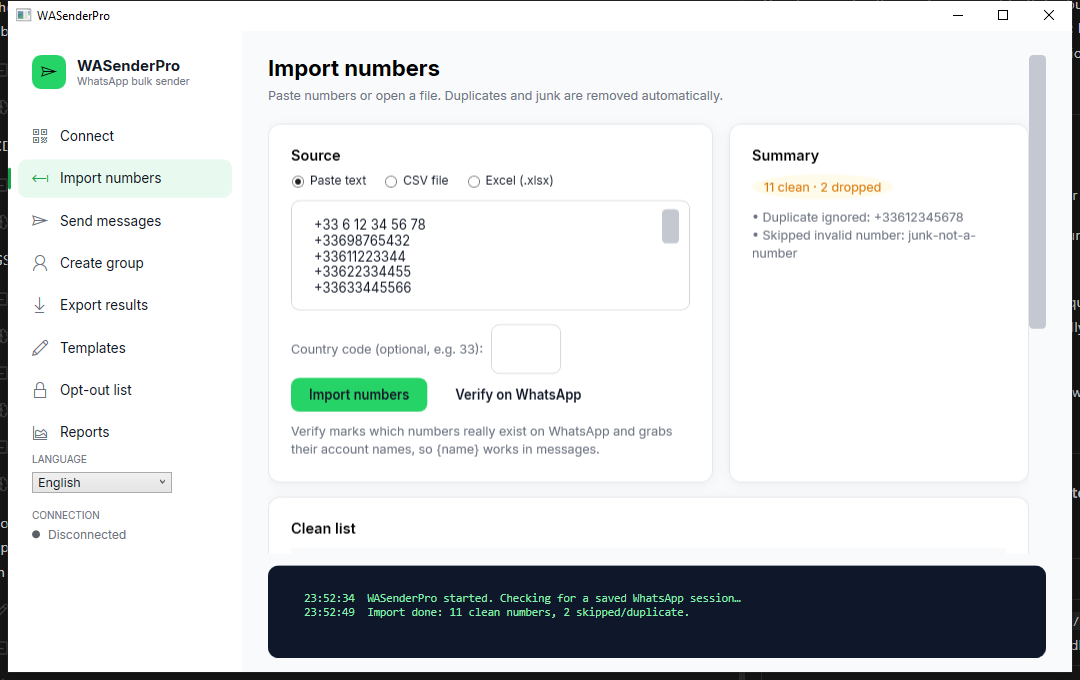
Verify numbers on WhatsApp
Find out which numbers really exist — and grab their names.
After importing, press "Verify on WhatsApp". The app checks each number at a calm, human-like pace and records two things: whether the number is on WhatsApp, and the account's public display name (used by the {name} token).
- Press "Verify on WhatsApp" — a progress bar fills while numbers are checked.
- Read the results — each number is marked "On WhatsApp", "Not on WhatsApp" or "Not checked", and names appear in the second column.
Why verify?
Sending only to verified numbers means fewer errors, faster batches, and {name} personalization that actually works.
Templates: {name} & spintax
Write once, personalize for every recipient.
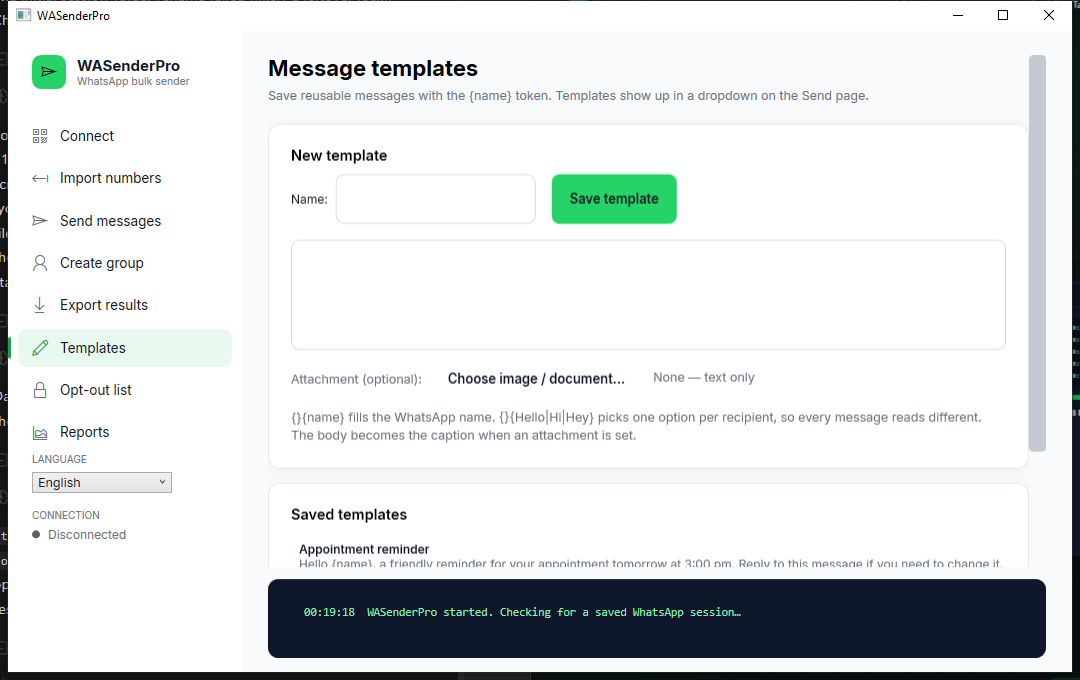
- Save a template — give it a name, write the body, optionally attach an image or document, then "Save template". Saved templates appear in the dropdown on the Send page.
- Use the {name} token — "Hi {name}!" becomes "Hi Sophie!" when Sophie is the contact's WhatsApp name (works best after Verify).
- Use spintax for variety — "{Hello|Hi|Hey}" picks one option per recipient, so a hundred messages don't read identical.
Send a batch (safely)
Like a careful human: one test first, then the batch with delays.
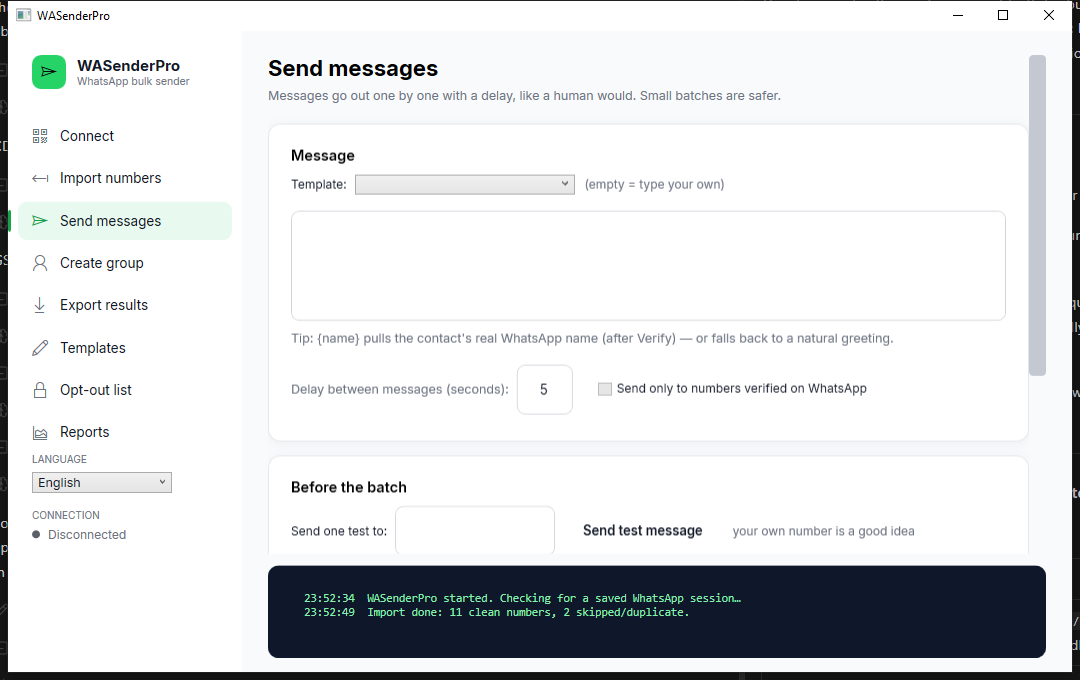
- Write or pick your message — type it, or choose a saved template from the dropdown.
- Send one test to yourself — in the "Before the batch" card, enter your own number and press "Send test message". Check it arrives looking right.
- Set the delay — seconds between messages (5 or more is recommended). Optionally check "verified only" to skip numbers that are not on WhatsApp.
- Press "Start sending" — the progress bar fills as messages go out one by one. You can "Pause" / "Resume" or "Stop" at any moment.
Safety, honestly
Automating WhatsApp goes against Meta's terms; accounts can be limited or banned. Keep batches small, keep delays at 5s+, respect the ~250/day guidance, and only message people who agreed to hear from you.
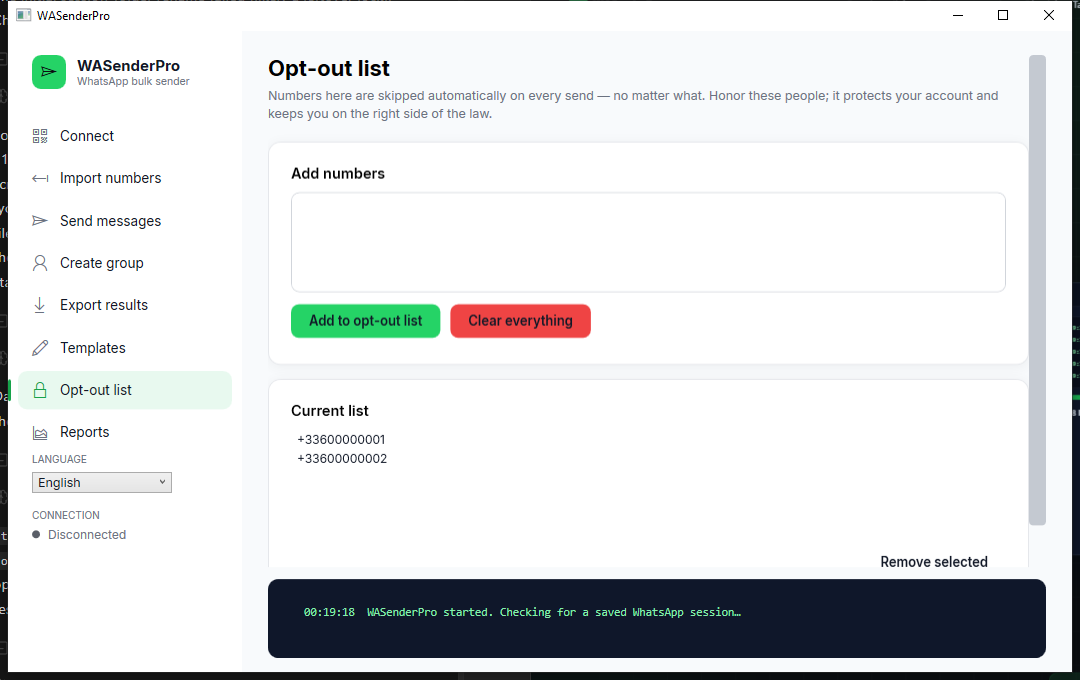
The opt-out list
People who asked to stop are skipped forever.
- Add numbers — paste one or more numbers (any separator) and press "Add to opt-out list".
- They are excluded everywhere — every future batch skips them automatically; the Send page tells you how many were skipped.
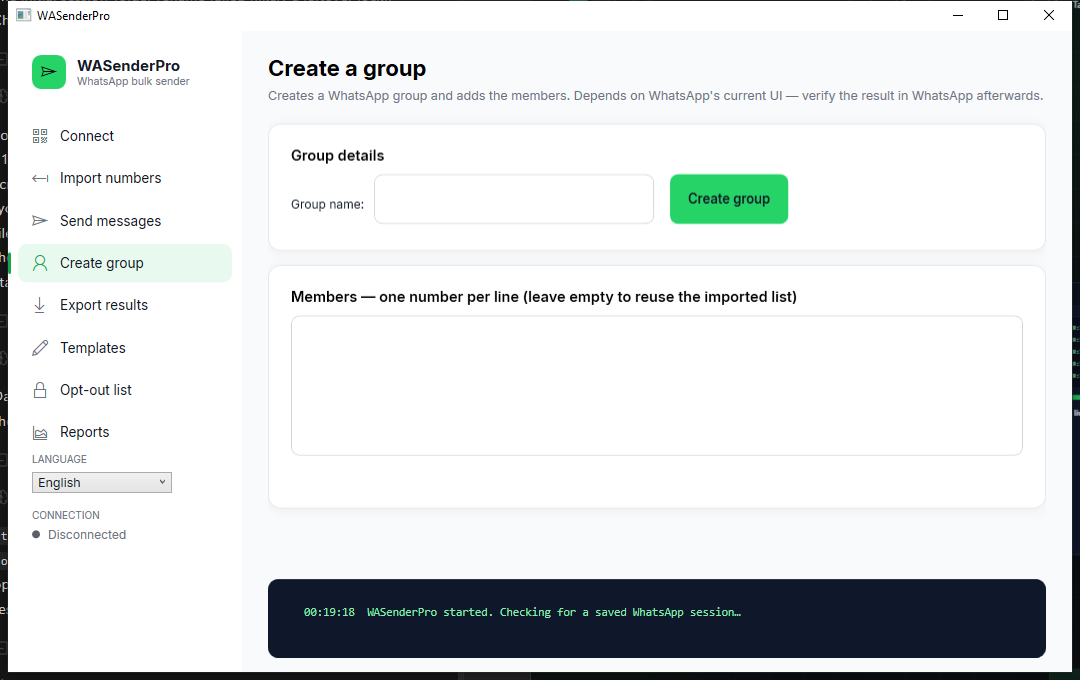
Create a group
Build a WhatsApp group and add your imported list as members.
- Name the group — type a name on the Create group page.
- Choose members — paste numbers, or leave the box empty to reuse your imported list.
- Press "Create group" — the app drives WhatsApp's own flow; check the result in WhatsApp afterwards (this feature depends on WhatsApp's current interface).
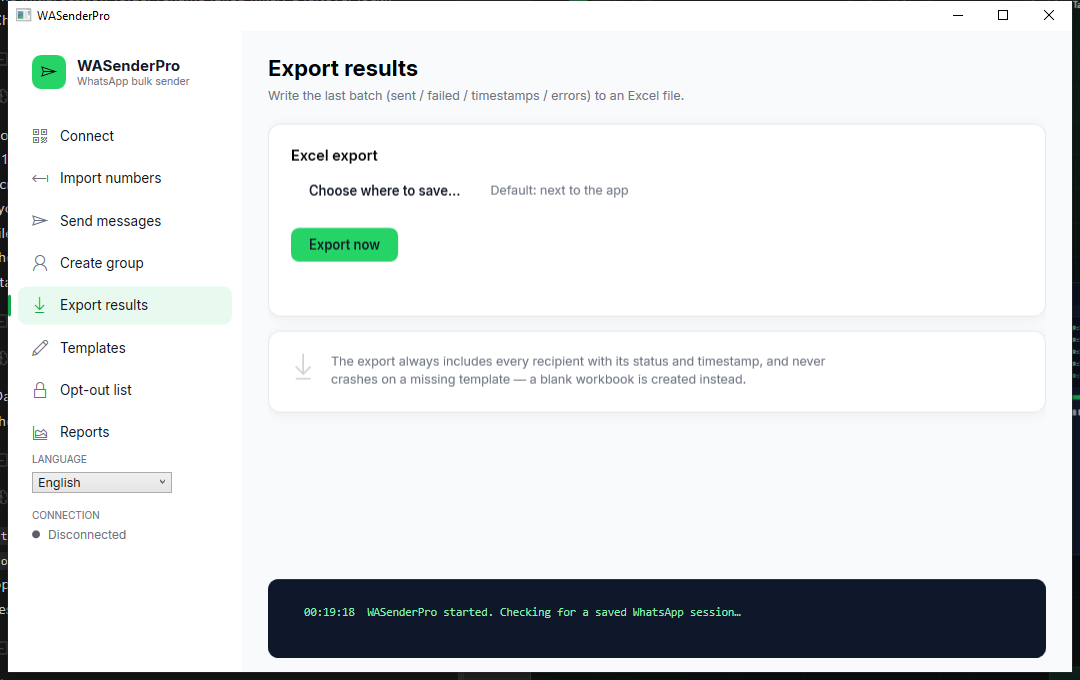
Export results to Excel
Every recipient, status, timestamp and error — in one .xlsx.
- Send a batch first — the export always contains the most recent batch.
- Choose where to save — optional; by default the file lands next to the app.
- Press "Export now" — you get an .xlsx with one row per recipient: number, name, statuses, timestamp, error.
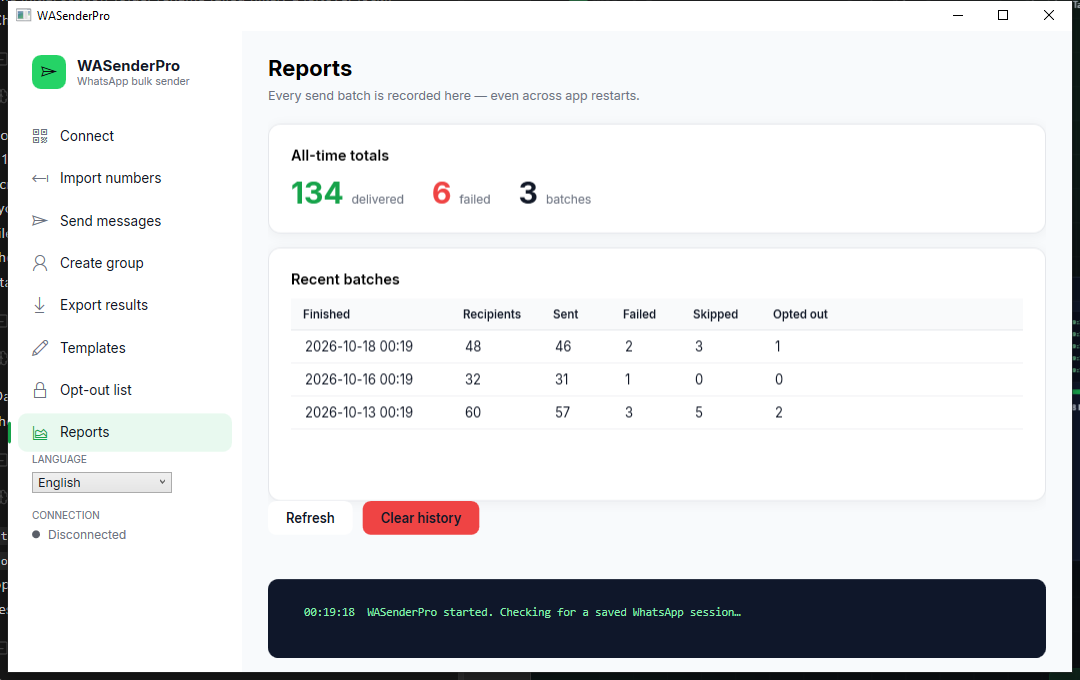
Reports & history
Every batch is recorded — even across restarts.
The Reports page shows all-time totals (delivered, failed, batches) and the last 50 batches with recipients, sent, failed, skipped and opted-out counts. Use it to keep an eye on your daily volume.
Generate & check numbers
No list yet? Build candidate numbers for a country and mobile prefix, keep the ones on WhatsApp.
- Describe the numbers — country code (e.g. 33), mobile prefixes (e.g. 6,7), how many digits follow the prefix, and how many numbers you want.
- Pick a mode — "Random" for scattered numbers, or "Sequential" to walk a range in order (with an optional "start after" number to continue where you stopped).
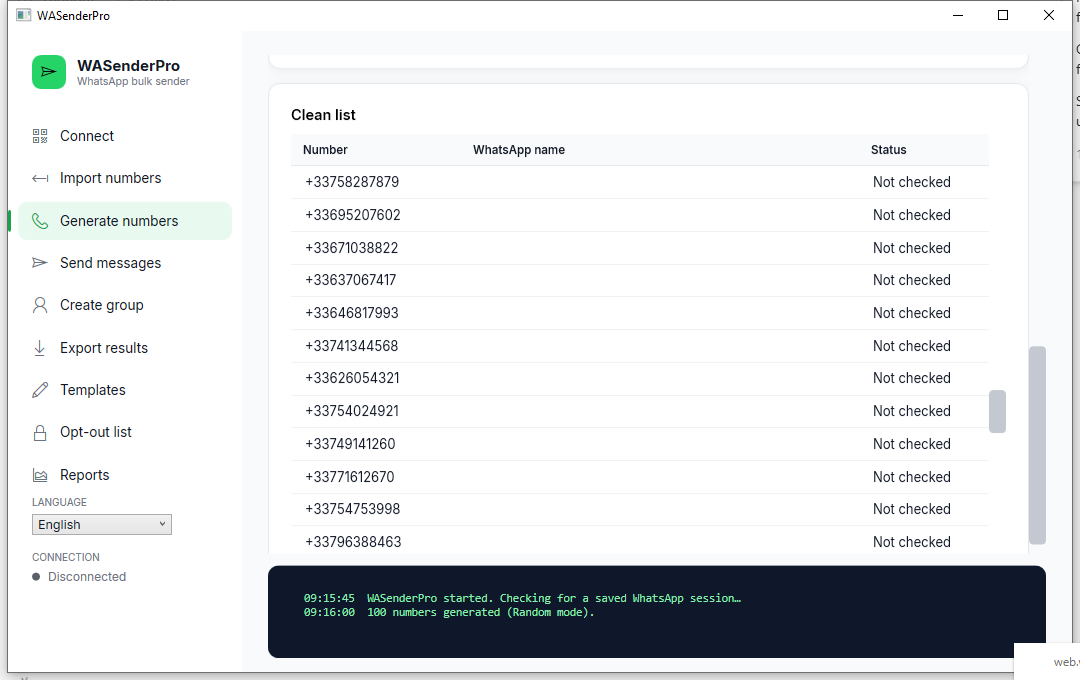
- Press "Generate numbers" — candidates appear in the list below; duplicates and impossible numbers are removed automatically.
- Press "Check on WhatsApp" — each candidate is checked at a human pace and marked "On WhatsApp" or "Not on WhatsApp"; account names are grabbed along the way.
- Use the results — "Use on Send page" loads them straight into the Send page (verified-only by default), or "Export to Excel" saves the list with statuses.
A word of caution
Generated numbers are cold contacts — people who never heard of you. Cold bulk messaging is the fastest way to get reported and banned, and in many countries it is simply illegal. Use the generator on prefixes you own or audiences that expect you (your own customers, opt-in lists).
That's everything — now try it
Download the trial and send your first test message in the next five minutes.
Download WASenderPro